


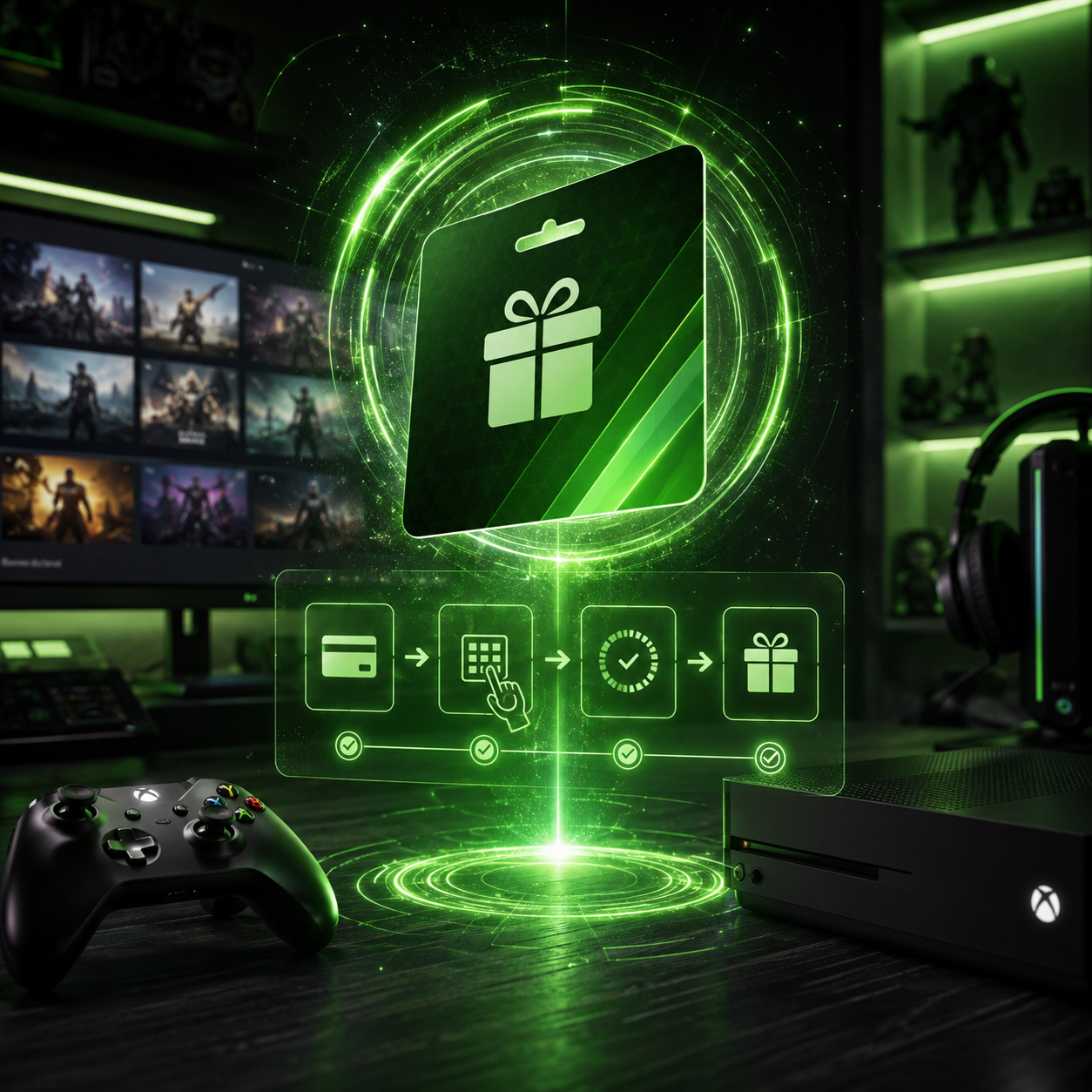

How to Redeem Xbox Gift Card: Step-by-Step Guide
If you have an Xbox Gift Card, you are able to add prepaid credit to your Microsoft account. Once you redeem the code, the value can be spent on eligible purchases like games, add-ons, movies, apps, and digital content from the Xbox and Microsoft Store.
The steps to redeem Xbox gift cards can vary based on how you choose to redeem it. You can redeem it on an Xbox console, the Microsoft website, or the Microsoft Store app on Windows.
In this post, we discuss how to redeem Xbox gift card codes on the mentioned platforms and what to do if the code isn’t working.
What Are Xbox Gift Cards?
An Xbox Gift Card is literally a gift card for Xbox. Each card has a code that will add funds to your Microsoft account. To redeem a gift card, you must log in to your Microsoft account and enter the code.
Think of the gift card like store credit. Once the code is redeemed, the amount gets linked to your Microsoft account, which you can use for purchases on Xbox.
Xbox gift cards are great for gamers who do not want to link a bank card to the Xbox account. Additionally, the gift card can be given to someone without needing to know what game, add-on, or subscription the recipient wants. If you are looking for more gaming payment options, you can also browse our Gaming Gift Cards category.
What Can You Buy Using an Xbox Gift Card?
You can use an Xbox Gift Card for certain digital products on Xbox and Microsoft Store. Microsoft’s Xbox redemption page mentions codes and gift cards for new games, Game Pass subscriptions, and other downloadable content.
Common uses may include:
- Games on Xbox
- Game add-ons
- Downloadable content
- In-game currency
- Movies and TV shows
- Apps and other digital content
- Game Pass subscriptions, if eligible
- Other purchases from Microsoft Store
Please note that balances available in an account are not cash. They are tied to the Microsoft account that redeemed the code and can only be spent on eligible purchases.
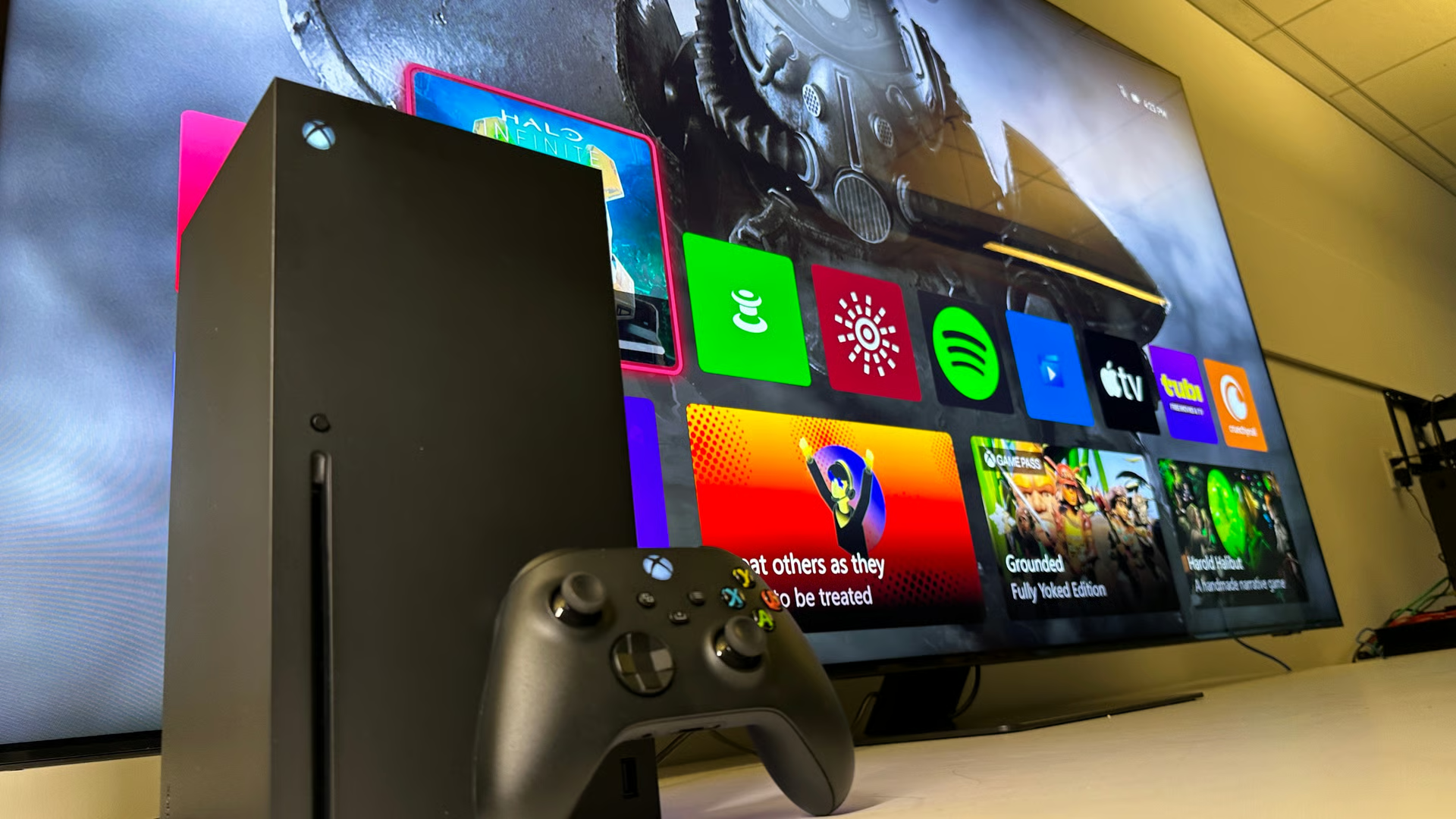
What To Know Before You Redeem an Xbox Gift Card
Before learning how to redeem Xbox gift card codes, ensure that you’re signed into the correct Microsoft account.
This part is very important. If the code is redeemed on the wrong account, the balance will be stuck there and moving the balance later is most likely impossible.
Before you redeem, check:
- Email for Microsoft account
- Xbox profile or gamertag
- Account region
- Gift card region or currency
- If the code has already been used
- If the code is for Xbox, Microsoft, Game Pass, or another product
If you bought the card for another person, it’s usually better to simply send them the code and let them redeem it on their Microsoft account. For fast delivery, a Digital Xbox Gift Card is usually the easier choice.
Redeeming Xbox Gift Card on Microsoft Website
If you want to redeem a code via website, Microsoft is very likely the easiest because you get to copy and paste the code and won’t have to type it out.
The Xbox redeem page allows you to sign in with an account and redeem an Xbox code or gift card.
To do this you should:
- Visit the Microsoft or Xbox redeem page.
- Sign in to your Microsoft account.
- Enter the 25-character gift card code.
- Verify the account displayed.
- Hit Next.
- Confirm the redemption.
- Make sure the system has added the balance.
This option works best for phone, laptop, or desktop browsers. When you want to avoid manually typing the code with a controller, you can use this method.
Redeeming Xbox Gift Card on Xbox Console
Another way to redeem an Xbox Gift Card is directly through the Xbox console.
It is a handy option if you want to spend the balance on a game, add-on, or content from the store right away.
The menu options may vary across console versions, but the steps are largely the same.
- Power on your Xbox console.
- Log in to the Xbox profile linked to the Microsoft account.
- Start the Microsoft Store.
- Look for the option that says Redeem.
- Type the gift card code slowly and carefully.
- Ensure the code is correct.
- Be patient for your balance to increase.
Before you enter the code, check that you are logged into the correct Xbox profile. Mistakes could happen if more than one user is logged into the console.
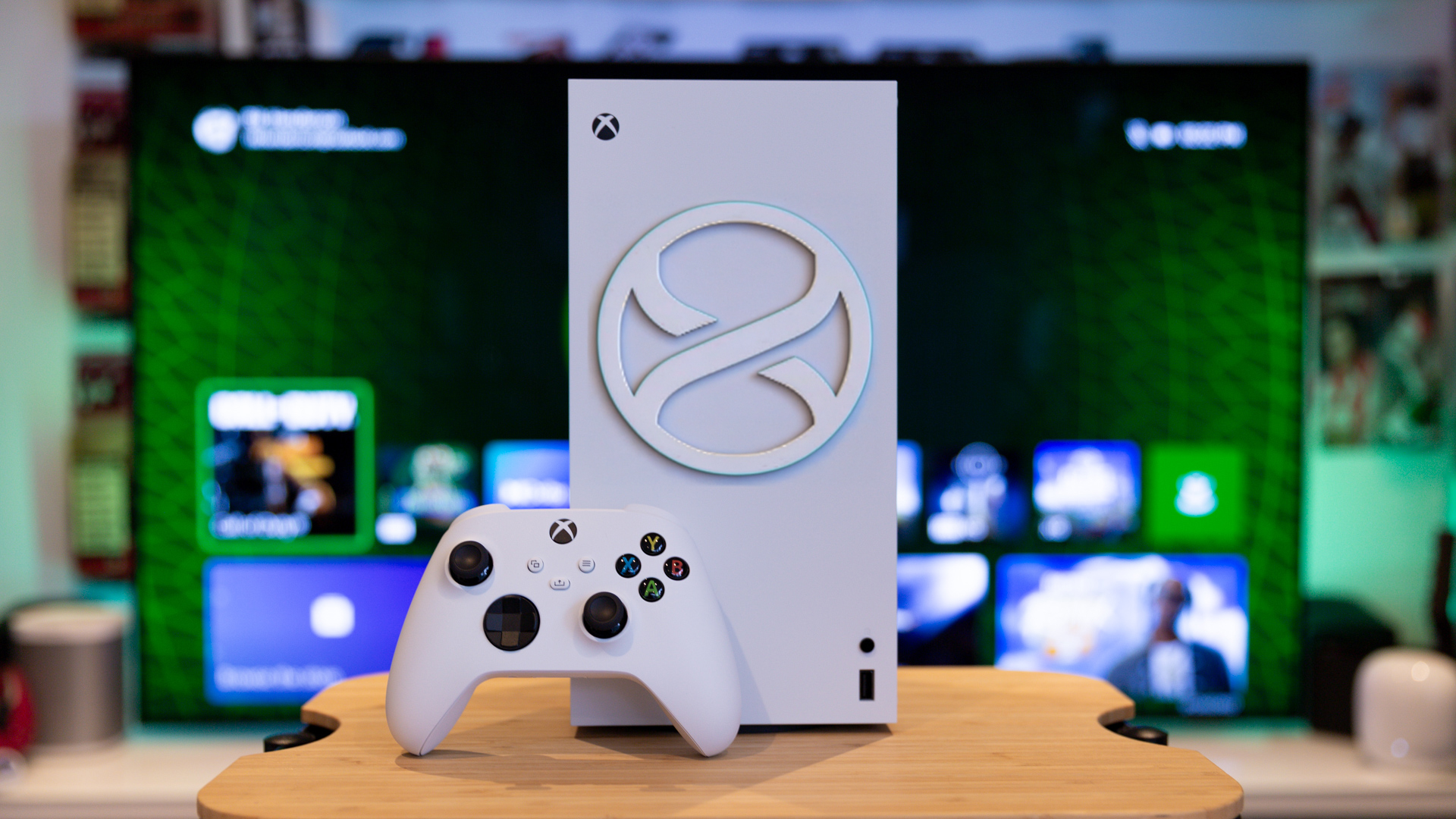
How to Redeem Xbox Gift Card on Windows
An Xbox or Microsoft code can be redeemed on Windows using Microsoft’s redemption page or the Microsoft Store app.
According to Microsoft’s support, users can enter the code and click on Next to add the same amount associated with the code to the Microsoft account.
This is the process for Windows:
- Launch any web browser on your Windows computer.
- Access Microsoft’s redeem page.
- Login to the relevant Microsoft account.
- Type your Xbox gift card code.
- Click Next.
- Confirm the redemption.
- Visit your Microsoft account balance.
If there is a redeem option on the Microsoft Store app on Windows, you can also use that. This is helpful for PC gamers who have the Microsoft Store, Xbox app or Game Pass on Windows.
Xbox Console vs Microsoft Website vs Windows
Although all three options can work, they each fit different users.
The simplest option is usually the Microsoft website, as you can copy and paste the code and it minimizes mistakes when using the controller to type.
If you use Xbox devices, it is easy to make purchases with the Xbox Gift Card directly on the console.
If you buy Xbox games from the Microsoft Store, buy games on the Xbox app, or play Xbox games on your PC, then you can link the gift card to your Microsoft account.
The most crucial aspect is the Microsoft account linked to the device. The gift card balance will link to the Microsoft account that is signed in when the gift card is redeemed.
How Long Should You Wait to See Your Gift Card Balance?
Normally, the redeeming process is quick, and you shouldn’t have to wait long for it to show up. Your account balance should update as soon as you redeem the code.
If your account balance doesn’t show up right away, don’t worry.
You can try the following:
- Refresh the page
- Log out and log back in
- Check the balance in your Microsoft account
- Close and restart the Xbox console or Microsoft Store app
- Make sure you redeemed the code on the correct account
- Check again in a few minutes
If your code was accepted but the balance still hasn’t shown, make sure you keep the order confirmation and reach out to Microsoft or the seller for assistance.
Why Won’t My Xbox Gift Card Code Work?
There are a variety of reasons that your code may appear to be valid but not be redeemable.
The most common reasons for this include:
- The code was entered incorrectly
- The code has already been redeemed
- The wrong Microsoft account was used
- The code is for a different region than your account
- Account and currency do not match
- Seller did not activate the code
- This product is ineligible
- Temporary issue with Microsoft Store
If the wrong code was purchased, Microsoft says to reach out to the retailer.
Before reaching out to support, verify the code, account, region, and receipt.
1. Code Was Entered Incorrectly
This issue is really easy to fix.
Xbox gift card codes are extremely long, and if you enter the wrong character, the system may deny the code. If your code was sent to you from an email, it is also possible that there are excess spaces due to the structure of the code.
Look out for:
- Wrong format
- Code entry mistakes
- Missing characters
- Extra spaces
- Look alike letters and numbers
- Copy and paste mistakes
If you’re entering the code using a controller, take your time. If the code was sent to you digitally, it would be better to do this on the Microsoft website to avoid any complications with copying and pasting.
2. The Code Has Been Redeemed
An Xbox Gift Card code is designed to be redeemed once.
If you get a system message stating that the code has been used, check to see if you have redeemed it using any other Microsoft account. This is a common occurrence among users who have multiple Xbox profiles or Microsoft logins.
If you bought the code from a suspicious seller, it is also possible that the code was used before it was sent to you.
If you think that the code hasn’t been redeemed yet, you can reach out to the seller. Make sure you have the order confirmation to help the seller assist you faster.
3. Wrong Microsoft Account Used
The balance for the gift card is allocated to the Microsoft account that redeems the code. This means that if you input the code while you are logged into the wrong account, the balance gets assigned to that account. This is common for consoles that are shared, family computers, or browsers where someone else is logged in.
Before you redeem the code, make sure to verify the email associated with the account and the Xbox gamertag.
If you have redeemed the code on the wrong account, you may have to try to reach out to Microsoft support, but that is assuming that balance transfers are possible in your case.
4. Region or Currency Issue
Gift cards have restrictions based on region and currency as well.
If your Microsoft account is country A, and the gift card is from country B, you can expect issues when trying to redeem or spend the card. Also, Microsoft does not support all payment methods in every region.
Before you attempt to buy or redeem, ensure that the following criteria are correct:
- Country of the card
- Currency of the card
- Country of Microsoft account
- Store region
- Country in the seller’s product description
If the region is incorrect, a code that is valid can still fail.
5. The Seller Did Not Activate the Code Correctly
It is also possible that the seller is at fault.
If the seller is a physical store, the gift card might not have been activated at the register. If the seller is a digital store, they might send you the incorrect code, an expired code, or a code from a different product.
If everything is correct with the account, and the code is still not working, you may need to check your receipt.
Contact the seller when:
- The code is marked invalid.
- The code was not received.
- There is an issue with the region.
- There is an issue with the amount.
- The code has been used.
When asking for help, do not post the entire code as it is treated like cash.
How to Avoid Issues When Redeeming Xbox Gift Cards
Most challenges can be prevented before redeeming the code.
Purchase items from reliable sellers.
Pay attention to the region and currency.
Ensure the recipient has an Xbox or Microsoft Store.
Redeem it on the correct Microsoft account.
Keep the code a secret.
Store the order confirmation.
Avoid posting the complete code.
If you are sending an Xbox Gift Card online, advise the recipient to wait until they are logged into their Microsoft account before redeeming the code.
You can also check other Online Gift Cards if the recipient does not use Xbox or Microsoft Store often.
What Is the Best Way to Redeem on Console, Website, or Windows?
There is no optimal way that works best for everyone.
If you need the quickest typing, go to the Microsoft website.
If you’re on Xbox and ready to make a purchase, do it through the console.
If you are a PC gamer, use the Windows browser or the Microsoft Store app.
All methods should add the value to the Microsoft account once the code is accepted, so the safest method is the one where you can confirm the account before redeeming.
Final Thoughts
It’s easy to learn how to redeem Xbox gift card codes if you know which account to use and where to redeem it.
You can redeem codes on the Xbox console, the Microsoft website, or on Windows. The instructions may vary by location, but the end result remains the same; the credit is added to the Microsoft account that was signed in during the redemption process.
Before you redeem, check the code’s account, country, currency, product type, and account region. Codes can become invalid due to entry errors, code misuse, account and country mismatches, seller activation issues, or temporary errors on the seller’s store.
An Xbox Gift Card is a great option as a prepaid Microsoft Store and Xbox purchase. It can be even better if you purchase the code from a good seller and redeem it on the right Microsoft account.
If the recipient plays on different platforms, you may also compare it with Steam Gift Card, PlayStation Gift Card, or Nintendo Gift Card before choosing.


